


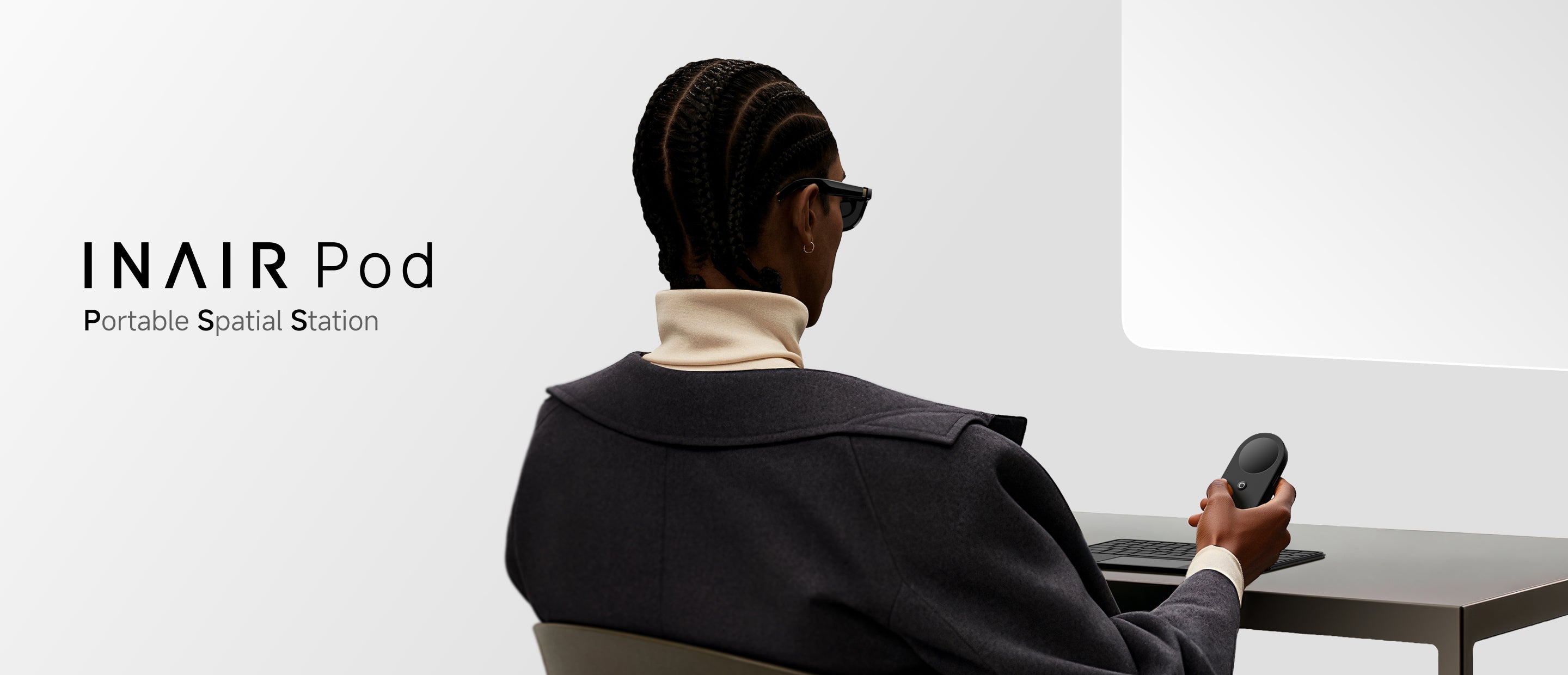
The living room cinema you've envisioned, unrestricted office presentations, and a truly user-defined tech experience are now ready.
Have you ever had that moment? After slipping on your INAIR glasses and experiencing the awe of a private 3D giant screen, you want to share that thrill instantly with family and friends nearby. Yet the excitement quickly fades as you rise, hunt for the HDMI cable, and fumble for ports behind your device. Or imagine the awkwardness when you urgently need to project work onto a conference room TV, only to find that darn cable has vanished.
What if sharing and extending your screen could be as simple as tapping "Cast" on your phone? Today, we are thrilled to announce: It can be.
Thanks to the latest system update, your INAIR Pod can now wirelessly stream its display directly to smart TVs, projectors, and streaming devices that support mainstream wireless casting protocols (such as Miracast). This is more than just a new feature; it's a vivid demonstration of INAIR's core product philosophy.
One Update, Born from Thousands of Community Voices
The birth of this new feature stems directly from widespread and genuine user feedback within our community. Across Discord channels, Reddit forums, and customer surveys, "Hoping Pod could connect wirelessly to larger screens" was one of the most frequent requests. We heard your voices about wired connections being less convenient in certain scenarios.
At INAIR, we firmly believe that the best direction for product evolution should be charted jointly by engineers and users. Therefore, our software team prioritized this request, and after development and testing, we've finally integrated it into this update. This is what our promise of "user-driven evolution" looks like in reality.
Beyond Wireless: Why "Continuous Evolution" is INAIR's Best Answer
Many tech products reach their capability peak the moment you unbox them. INAIR has chosen a different path: We view each device as a "living platform," whose value doesn't diminish over time but instead grows through regular, major monthly OTA updates.
This wireless casting feature is just the latest milestone on this journey. Looking back, our updates have:
-
Refined the real-time 2D-to-3D AI engine from "interesting" to "stunning."
-
Opened up compatibility support for third-party AR glasses like XREAL and Viture, protecting your investment.
-
Continuously enhanced the stability and interactive intuition of the multi-window system.
Looking ahead, every update holds the potential for new surprises. Purchasing INAIR doesn't just get you hardware; it grants you a continuously upgradeable ticket to the future of spatial computing experiences.
Five Pillars: Building an Unmatched Experience
It is this "continuous evolution" capability, combined with the solid foundation built from day one, that sets INAIR apart in the AR and spatial computing landscape:
-
Cinema-Quality Intelligent 3D: Leveraging the industry-leading Vision Transformer (ViT) large model, our AI rendering engine can convert any streaming video into comfortable, immersive 3D in real-time, surpassing solutions based on smaller models in both effect and comfort.
-
True Spatial Productivity: INAIR OS is a complete spatial operating system, supporting the simultaneous opening and management of up to 6 floating windows. It liberates your workflow from the confines of physical screens, enabling genuine three-dimensional multitasking.
-
An Open and Compatible Ecosystem: We respect your choices. Whether it's our INAIR 2 Pro, your existing XREAL or Viture glasses, or now TVs and projectors, the INAIR Pod strives to be the universal smart hub connecting all your displays.
-
Privacy-First Design: Stepless electrochromic lenses allow you to switch between immersive and transparent modes instantly. Combined with directional audio technology, this ensures your work and entertainment remain completely private, even in a cafe or on a flight.
-
All-in-One Portability: The INAIR Go Pack houses the glasses, computing pod, and keyboard in a space smaller than a wash bag, yet delivers a full-featured mobile office and entertainment experience comparable to a traditional laptop.
How to Unleash Wireless & Join the Co-Creation Journey
You can now experience wireless freedom by following these steps:
-
Ensure your INAIR Pod is connected to the network and updated to the latest system version.
-
Open the screen mirroring or wireless casting function on your smart TV or projector.
-
Tap the “Connect External Display” button on the INAIR pod touchscreen display and search for your device.
-
Click connect, and start sharing wirelessly.
This evolution journey needs your continued participation. We invite you to:
-
Join Our Official Communities: Engage directly with global users and our product team on Discord or the INAIR subreddit.
-
Share Your Use Cases: Tell us how wireless casting has changed your experience, or what feature you'd like to see next.
The best tech products shouldn't require you to adapt to them; they should evolve for you. From today, cut that unnecessary cord, enjoy more screen freedom, and join us in defining the next chapter of spatial computing.
Q&A: Your Wireless Display Questions Answered
Q1: What specific devices are compatible with wireless casting from INAIR Pod?
A: The INAIR Pod's wireless casting is compatible with two main categories of devices:
-
Displays with built-in Miracast: This includes many modern smart TVs, monitors, and projectors. You typically need to open the "Screen Mirroring" or "Miracast" menu on the TV itself.
-
Universal wireless display adapters: Popular models from brands like Microsoft, Belkin, or generic "Miracast dongles" that plug into any display's HDMI port will also work.
Q2: How is casting from the INAIR Pod different from just casting my phone screen?
A: This is a key difference. Your phone casts a flat, 2D mirror of its screen. The INAIR Pod wirelessly streams your complete spatial computing workspace.
Q3: Will the wireless connection affect video quality or cause lag?
A: For most uses like watching movies or productivity work, the experience is smooth with high quality. A very stable Wi-Fi network (preferably 5GHz) is recommended for the best performance.
Q4: This feature came from user feedback. How can I suggest the next major update?
A: Exactly! This update is a direct result of our community's voice. You can join and share your ideas on our official Discord server or Reddit community. User feedback is a primary driver for our monthly OTA development roadmap, helping us prioritize what to build next.
Q5: What should I do if my TV doesn't show up when I try to cast?
A: First, ensure both your INAIR Pod and your display are connected to the same Wi-Fi network. Then, double-check that the TV's screen mirroring function is active and visible. If it still doesn't appear, try restarting both devices. As a reliable alternative, the wired HDMI connection remains fully supported for all compatible displays.
Share:
Beyond the Gimmick: The AI Science Behind INAIR's Truly Immersive 3D
INAIR and VITURE Form Strategic Partnership to Advance Open Spatial Computing Ecosystem