


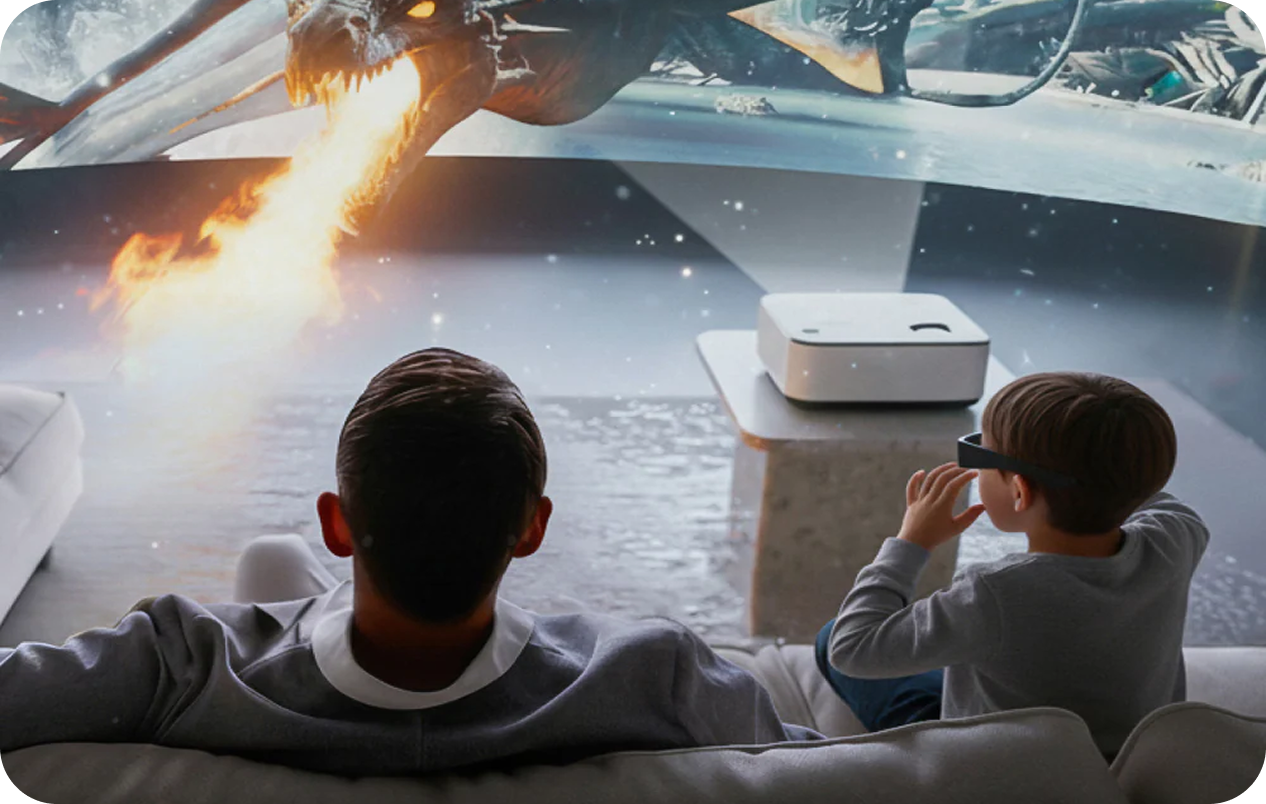
Turn your living room into a mind-blowing 3D home theater or supercharge your workspace with a massive stereoscopic display – this easy-to-follow guide shows you exactly how to hook up your INAIR Pod and unlock shared spatial computing magic.
“Can I watch 3D movies on a big screen with my friends?” “How do I turn my regular monitor into a full-on 3D external display for my INAIR setup?” If you’re a new INAIR spatial computer owner wondering about these, you’re in the right spot!
Connecting your INAIR Pod to a projector or external monitor is the ultimate way to level up from solo AR glasses sessions to group immersion and shared 3D fun.
Why Connect? From Personal AR to Shared 3D Home Theater Awesomeness
The real magic of INAIR lies in its powerful AI real-time 3D engine and spatial OS. When you’re rocking the AR glasses alone, you get a private 140-inch virtual 3D screen that feels massive.
But the INAIR Pod takes it further. With a simple HDMI connection, it outputs AI-converted 3D video to pretty much any external display.
Here’s what that unlocks for you:
-
Share jaw-dropping 3D movies with family and friends on the big screen – no need for everyone to have AR glasses!
-
Display and control your spatial multitasking workflow on a huge physical monitor for better productivity.
-
Transform idle TVs, monitors, or DLP-Link 3D projectors into your go-to hub for immersive stereoscopic content.
Perfect for 3D home theater setups, family movie nights, or turning any 2D streaming into real-time 3D magic.
What Makes It Stand Out: The Unique INAIR Edge
Before diving in, here’s why the INAIR solution crushes the competition:
🔹 AI Real-Time 3D Engine This is the game-changer. No need for special “side-by-side” or “top-bottom” 3D sources. The AI smartly analyzes depth in any regular 2D video stream – think Netflix, YouTube, Disney+, or local files – and converts it on-the-fly into stunning 3D with real pop-out effects.
INAIR's real-time 2D-to-3D conversion has been praised in reviews (e.g., Android Authority notes it works on "anything you watch — including Netflix, YouTube, TikTok, or even old downloaded videos — instantly becomes stereoscopic 3D, with smooth playback and almost no delay").
🔹 Superb Compatibility The INAIR Pod uses standard HDMI output, working with most projectors, monitors, and TVs. It’s especially optimized for DLP-Link 3D projectors (like BenQ, Optoma, or XGIMI models) for the best active shutter 3D experience.
🔹 All-in-One Simplicity No messy setups or extra emitters required. You just need: your INAIR Pod, the included HDMI-to-USB-C adapter cable, your display device, and some active DLP-Link 3D glasses for viewing that immersive depth.
Ideal for anyone searching for “real-time 2D to 3D conversion on projector” or “best AR glasses external display setup.” INAIR's Pod even supports third-party AR glasses like XREAL and VITURE for similar features.
Step-by-Step Guide: Connecting to a Projector or Monitor
It’s super straightforward – follow these steps and you’ll be up and running in minutes:
Step 1: Hardware Connection
-
Plug one end of the HDMI cable into your projector or monitor’s HDMI input.
-
Connect the other end to the INAIR Pod using the included HDMI-to-USB-C adapter.
-
Firmly insert the USB-C end into the Pod’s port.
Step 2: Configure Your Display Device
-
Power on your projector or external monitor.
-
Head to the settings menu and set the 3D mode to “Side-by-Side 3D” (this is how most devices best recognize the INAIR 3D signal).
If your device doesn’t support 3D, no worries – it’ll just show in crisp 2D automatically.
Step 3: Dive into 3D Content
-
Once connected, the INAIR interface mirrors to your big screen.
-
Play any regular 2D video (open your favorite streaming app like Netflix or YouTube).
-
The AI depth engine kicks in automatically, turning it into breathtaking real-time 3D.
-
Grab your DLP-Link active shutter 3D glasses, press the mode button until the image pops with crystal-clear depth and zero ghosting.
Now everyone can enjoy that “wow” moment together!
Pro Tips: Advanced Controls and Compatibility
Manual 3D Toggle Want to switch 3D on/off quickly? On the mirrored INAIR interface, pull up the top menu bar and toggle between 2D/3D modes.
Compatibility Check For the ultimate 3D pop, confirm your projector or monitor supports DLP-Link 3D (check the specs, manual, or manufacturer site). These devices sync automatically – no extra gear needed.
For the ultimate 3D pop, confirm your projector or monitor supports DLP-Link or side-by-side 3D formats — popular in many BenQ, Optoma, and XGIMI models. Regular displays will still deliver high-quality 2D output, making this setup versatile for any home.
With INAIR's growing recognition (featured at CES 2025 and in outlets like PR Newswire), this guide helps you maximize one of the most innovative spatial computing systems available today. Enjoy the immersion!
Troubleshooting Common Issues
Even pros hit snags sometimes. Here's a quick guide to the most frequent hiccups and how to fix them.
-
No 3D Effect?
If you don't see any 3D effect after connecting, don't worry—it's usually a simple fix. First, make sure your projector or monitor is set to "Side-by-Side 3D" mode. Next, check your 3D glasses: try cycling through their mode button and ensure they have enough battery. Finally, verify that your display device itself supports the DLP-Link 3D standard, which is key for automatic 3D synchronization.
-
Experiencing Minor Ghosting?
Slight double images can ruin the immersion. This typically has two causes: First, the 3D glasses might be slightly out of sync—simply press the sync button on the glasses to re-pair them. Second, the room might be too bright, washing out the contrast of the 3D image. Dimming the lights usually provides an immediately clearer and deeper 3D effect.
-
Pod Connected But No Signal?
If the external screen remains black, the issue is often physical. First, double-check and firmly reseat all cables, especially at the HDMI and USB-C ports. Second, confirm that your projector or monitor is set to the correct HDMI input source; it might be connected to a port labeled "HDMI 1" or "HDMI 2".
Q&A
Q1: Does this work with all apps for 3D conversion?
A: Yep! The AI real-time 3D engine handles any video content – streaming services, browsers, or local players. Results vary slightly based on the original footage, but action-packed scenes deliver the most thrilling depth.
Q2: Do I need a special 3D video source when connecting to a regular monitor or TV?
A: No. INAIR's proprietary AI real-time 3D engine automatically analyzes depth information from standard 2D video and instantly converts it into high-quality stereoscopic 3D. Even everyday streaming content or local video files deliver authentic pop-out 3D effects without requiring special side-by-side or top-bottom format sources.
Q3: Can I use it if my projector or display doesn't support 3D mode?
A: Absolutely. If your device lacks 3D support, it will automatically display content in crisp 2D mode. You can still mirror INAIR's spatial interface to a large screen for productivity expansion, multitasking, or regular video playback. Devices with 3D support unlock the full stereoscopic experience.
Q4: Do I need to purchase additional transmitters or synchronization devices?
A: No. For recommended DLP-Link 3D projectors (such as BenQ, Optoma, XGIMI), simply pair them with DLP-Link active shutter 3D glasses. No extra transmitters or complex synchronization equipment are required. The entire setup only needs the INAIR Pod, the included HDMI-to-USB-C adapter cable, and your display device.
Hooking up external displays turns your INAIR from a solo productivity beast into a family entertainment powerhouse. As one early user raved in the community: “When that soccer goal flew out of the screen during the game, the whole room erupted – way better than watching alone through the glasses!”
True tech friendliness means turning personal wow moments into shared excitement. Ready to set up your own INAIR 3D home theater? Grab your Pod and go for it – the immersion awaits!
If you want to transform your living room into an amazing 3D home theater, or inject powerful energy into your workspace with a massive stereoscopic display. Explore INAIR's official website now!
Share:
Magic Moment: I Turned My Entire Screen Into a 3D World | Experiencing INAIR's Real-Time 2D-to-3D
Unlock More Screens: INAIR Pod Now Brings Its Spatial Magic to Popular Third-Party AR Glasses